Google Analytics 4 (GA4) Tutorial
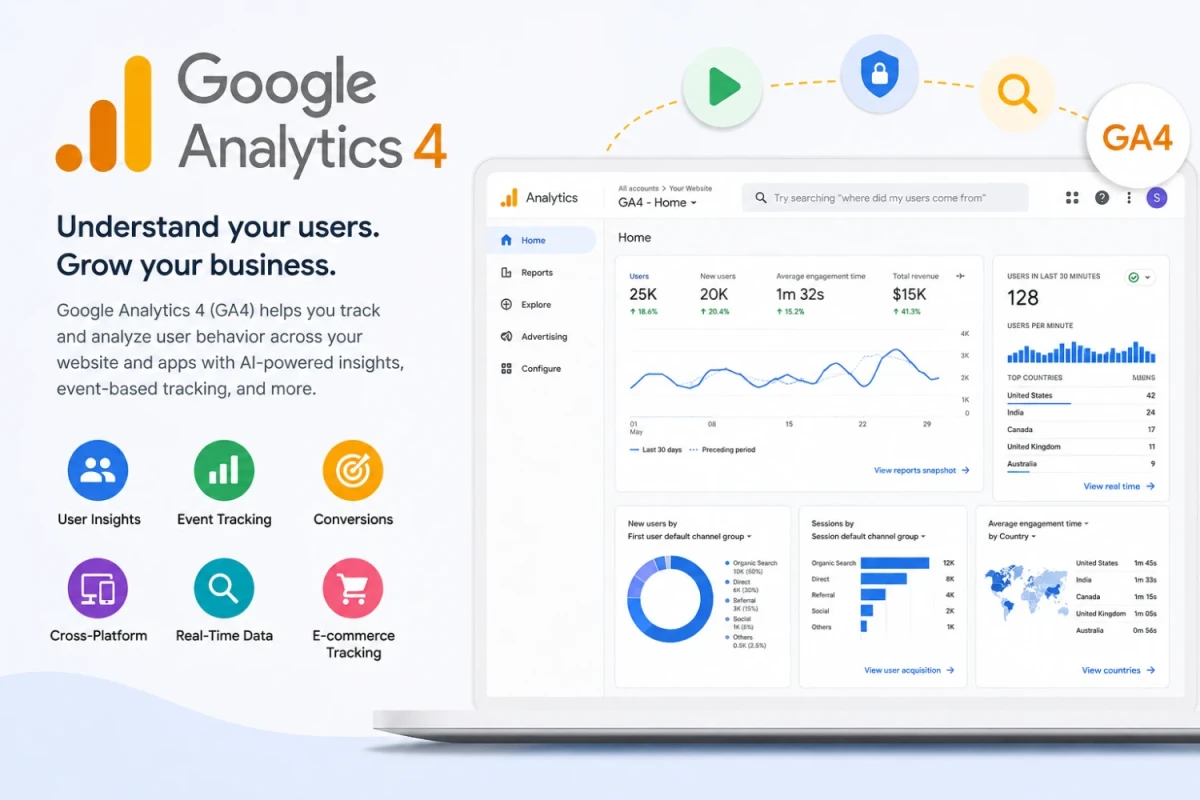
Google Analytics 4, commonly known as GA4, is the latest version of Google Analytics. It is used to track and understand how users interact with a website or mobile app. Unlike the older Universal Analytics, GA4 is built around an event based data model, which means almost every user interaction is recorded as an event. This tutorial walks through the core concepts, setup process, and basic usage of GA4 step by step.
1. What is GA4
GA4 is a web and app analytics platform provided by Google. It collects data about visitors, such as which pages they view, how long they stay, what device they use, where they come from, and what actions they take. This data helps website owners and marketers make informed decisions about content, marketing, and user experience.
1.1 Why GA4 is different
The older Universal Analytics used a session based model with pageviews as the primary hit type. GA4 replaces this with an event based model, where pageviews, clicks, scrolls, video plays, and purchases are all treated as events with parameters. This makes GA4 more flexible for tracking both websites and mobile apps within a single property.
2. Setting up a GA4 Property
2.1 Create a Google Analytics account
Go to analytics.google.com and sign in with a Google account. If this is the first time using Analytics, a setup wizard will guide you through creating an account.
2.2 Create a property
Inside the account, create a new property. Enter the property name, select the reporting time zone, and choose the currency. GA4 properties are created by default when you set up a new account.
2.3 Add a data stream
A data stream connects GA4 to your website or app. For a website, choose Web as the platform, enter the website URL, and give the stream a name. GA4 will then generate a Measurement ID, which looks similar to the format shown below.
G-XXXXXXXXXX
3. Installing the GA4 Tracking Code
3.1 Using the Global Site Tag
Copy the Measurement ID and add the GA4 tracking snippet inside the head section of every page on your website. A typical snippet looks like this.
<script async src="https://www.googletagmanager.com/gtag/js?id=G-XXXXXXXXXX"></script>
<script>
  window.dataLayer = window.dataLayer || [];
  function gtag(){dataLayer.push(arguments);}
  gtag('js', new Date());
  gtag('config', 'G-XXXXXXXXXX');
</script>
3.2 Using Google Tag Manager
Instead of adding the code directly, many websites use Google Tag Manager to manage tags. In Tag Manager, create a new tag, choose the GA4 Configuration tag type, enter the Measurement ID, set the trigger to All Pages, and publish the container.
4. Understanding GA4 Events
4.1 Automatically collected events
GA4 automatically tracks several events without any extra setup, including page_view, scroll, click on outbound links, site_search, and video_engagement. These are called automatically collected events.
4.2 Enhanced measurement
Enhanced measurement is a feature inside the data stream settings that allows you to turn on or off automatic tracking of scrolls, outbound clicks, site search, video engagement, and file downloads without writing any code.
4.3 Custom events
Custom events let you track specific actions unique to your business, such as a newsletter signup or a product review submission. A custom event can be sent using the gtag function as shown below.
gtag('event', 'newsletter_signup', {
  'method': 'website_form'
});
4.4 Recommended events
Google also provides a list of recommended events with predefined names and parameters, such as sign_up, login, and purchase. Using recommended event names helps GA4 apply built in reporting features correctly.
5. Key GA4 Concepts
5.1 Parameters
Every event in GA4 can carry additional information called parameters. For example, a purchase event may include parameters like value, currency, and transaction_id.
5.2 User properties
User properties describe attributes of a user, such as membership type or preferred language. These persist across sessions and events for that user.
5.3 Conversions
Any event can be marked as a conversion in GA4. Conversions represent actions that are valuable to the business, such as a completed purchase or a form submission.
5.4 Audiences
Audiences are groups of users defined by shared characteristics or behaviors, such as users who visited a pricing page but did not purchase. Audiences can later be used for remarketing.
6. Exploring GA4 Reports
6.1 Realtime report
The Realtime report shows activity happening on the website right now, including active users, their location, and the events they are triggering.
6.2 Life cycle reports
Life cycle reports are grouped into Acquisition, Engagement, Monetization, and Retention. Acquisition shows where users come from, Engagement shows how users interact with content, Monetization shows revenue related data, and Retention shows how often users return.
6.3 Explore section
The Explore section allows building custom reports using techniques such as funnel exploration, path exploration, and segment overlap. This is useful when the standard reports do not answer a specific question.
7. Setting up Conversions and Goals
To mark an event as a conversion, go to the Admin section, open Events, find the event you want, and toggle the Mark as conversion switch. Once enabled, that event will appear in conversion reports and can be used for advertising optimization.
8. Linking GA4 with Other Tools
8.1 Google Ads
Linking GA4 with Google Ads allows conversion data to flow into advertising campaigns, which helps optimize ad spend based on actual user actions.
8.2 Google Search Console
Linking Search Console with GA4 allows you to see organic search queries alongside on site behavior data.
8.4 BigQuery
GA4 offers a free export of raw event data into BigQuery, which is useful for advanced analysis using SQL queries beyond what the standard interface provides.
9. Basic GA4 Debugging
Before trusting the collected data, it is important to verify that events are firing correctly. GA4 provides a DebugView for this purpose. To use it, enable debug mode using the following parameter.
gtag('config', 'G-XXXXXXXXXX', { 'debug_mode': true });
Once debug mode is enabled, open the DebugView report inside GA4 to see events arriving in real time along with their parameters.
10. Summary
GA4 is built around events, parameters, and user properties rather than sessions and pageviews. Setting it up involves creating a property, adding a data stream, installing the tracking code, and configuring events and conversions. Once data starts flowing, the built in reports and the Explore section can be used to understand user behavior and measure business outcomes.