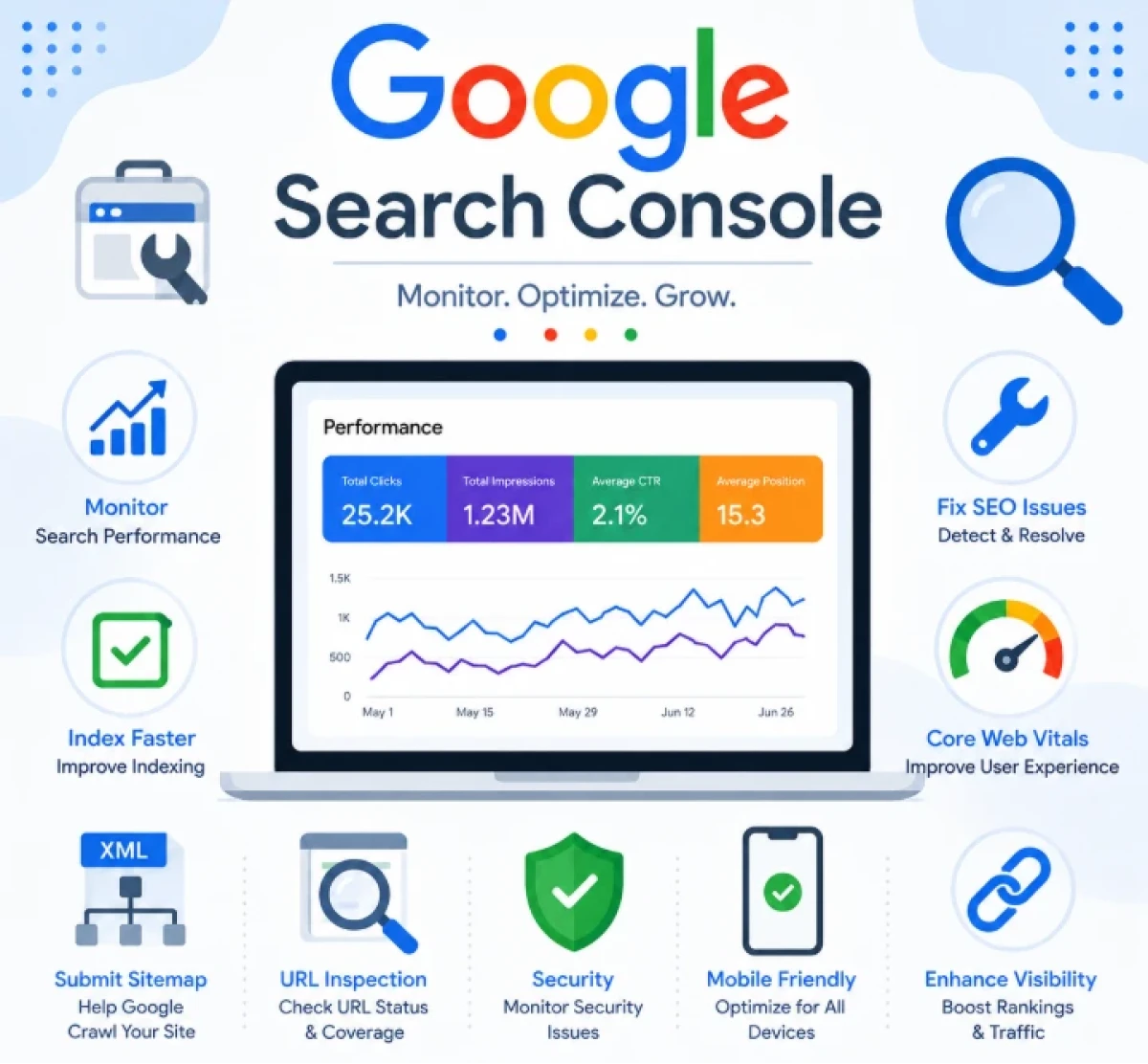
Google Search Console API with Laravel Tutorial
This tutorial explains how to connect Laravel with the Google Search Console API. It covers creating Google Cloud credentials, installing the required packages, authenticating with OAuth2, and fetching search analytics data.
1. Prerequisites
Before starting, you need a working Laravel project, Composer installed, a Google account with a verified property in Search Console, and access to Google Cloud Console.
2. Create a Google Cloud Project
Go to Google Cloud Console and create a new project. Then enable the Search Console API for that project from the API Library.
2.1 Enable the API
Search for "Google Search Console API" in the API Library and click Enable.
2.2 Create OAuth Credentials
Navigate to APIs and Services, then Credentials. Create an OAuth client ID of type Web application. Add your Laravel callback URL as an authorized redirect URI, for example:
http://localhost:8000/auth/google/callback
Download the generated client ID and client secret. You will need both values in your Laravel environment file.
3. Install Required Packages
Install the official Google API client library using Composer.
composer require google/apiclient:^2.15
4. Configure Environment Variables
Add the following variables to your .env file.
GOOGLE_CLIENT_ID=your-client-id
GOOGLE_CLIENT_SECRET=your-client-secret
GOOGLE_REDIRECT_URI=http://localhost:8000/auth/google/callback
5. Create a Google Client Service
Create a helper class to build and configure the Google client. Save this as app/Services/GoogleSearchConsoleService.php
<?php

namespace App\Services;

use Google\Client;
use Google\Service\SearchConsole;

class GoogleSearchConsoleService
{
    protected Client $client;

    public function __construct()
    {
        $this->client = new Client();
        $this->client->setClientId(env('GOOGLE_CLIENT_ID'));
        $this->client->setClientSecret(env('GOOGLE_CLIENT_SECRET'));
        $this->client->setRedirectUri(env('GOOGLE_REDIRECT_URI'));
        $this->client->addScope(SearchConsole::WEBMASTERS_READONLY);
        $this->client->setAccessType('offline');
        $this->client->setPrompt('consent');
    }

    public function getClient(): Client
    {
        return $this->client;
    }
}
6. Build the Authentication Routes
Add two routes in routes/web.php, one to redirect the user to Google, and one to handle the callback.
use App\Http\Controllers\GoogleAuthController;

Route::get('/auth/google', [GoogleAuthController::class, 'redirect']);
Route::get('/auth/google/callback', [GoogleAuthController::class, 'callback']);
7. Create the Auth Controller
Create app/Http/Controllers/GoogleAuthController.php to handle redirecting to Google and storing the returned access token.
<?php

namespace App\Http\Controllers;

use App\Services\GoogleSearchConsoleService;
use Illuminate\Http\Request;
use Illuminate\Support\Facades\Session;

class GoogleAuthController extends Controller
{
    public function redirect(GoogleSearchConsoleService $service)
    {
        $client = $service->getClient();
        return redirect($client->createAuthUrl());
    }

    public function callback(Request $request, GoogleSearchConsoleService $service)
    {
        $client = $service->getClient();
        $token = $client->fetchAccessTokenWithAuthCode($request->get('code'));

        Session::put('google_token', $token);

        return redirect('/search-console/data');
    }
}
8. Fetch Search Analytics Data
Create a controller method that uses the stored token to query the Search Console API for clicks, impressions, and position data.
<?php

namespace App\Http\Controllers;

use App\Services\GoogleSearchConsoleService;
use Google\Service\SearchConsole;
use Google\Service\SearchConsole\SearchAnalyticsQueryRequest;
use Illuminate\Support\Facades\Session;

class SearchConsoleController extends Controller
{
    public function data(GoogleSearchConsoleService $service)
    {
        $client = $service->getClient();
        $client->setAccessToken(Session::get('google_token'));

        $searchConsole = new SearchConsole($client);

        $siteUrl = 'https://example.com/';

        $requestBody = new SearchAnalyticsQueryRequest([
            'startDate' => now()->subDays(30)->format('Y-m-d'),
            'endDate'   => now()->format('Y-m-d'),
            'dimensions' => ['query'],
            'rowLimit'  => 25,
        ]);

        $response = $searchConsole->searchanalytics->query($siteUrl, $requestBody);

        return response()->json($response->getRows());
    }
}
9. Add the Data Route
use App\Http\Controllers\SearchConsoleController;

Route::get('/search-console/data', [SearchConsoleController::class, 'data']);
10. Refreshing Expired Tokens
Access tokens expire after one hour. Check if the token is expired before making a request, and refresh it using the stored refresh token.
if ($client->isAccessTokenExpired()) {
    $refreshToken = $client->getRefreshToken();
    $newToken = $client->fetchAccessTokenWithRefreshToken($refreshToken);
    Session::put('google_token', $newToken);
}
11. Testing the Integration
Visit /auth/google in your browser. Log in with the Google account that has access to the verified property. After granting permission, you will be redirected to the data route, which returns a JSON list of search queries along with clicks, impressions, and average position.
12. Common Issues
12.1 Invalid Redirect URI
Ensure the redirect URI in your .env file exactly matches the one configured in Google Cloud Console, including the protocol and trailing slashes.
12.2 insufficientPermissions Error
This means the authenticated Google account does not have owner or full access to the property in Search Console. Add the account as a user in Search Console settings.