
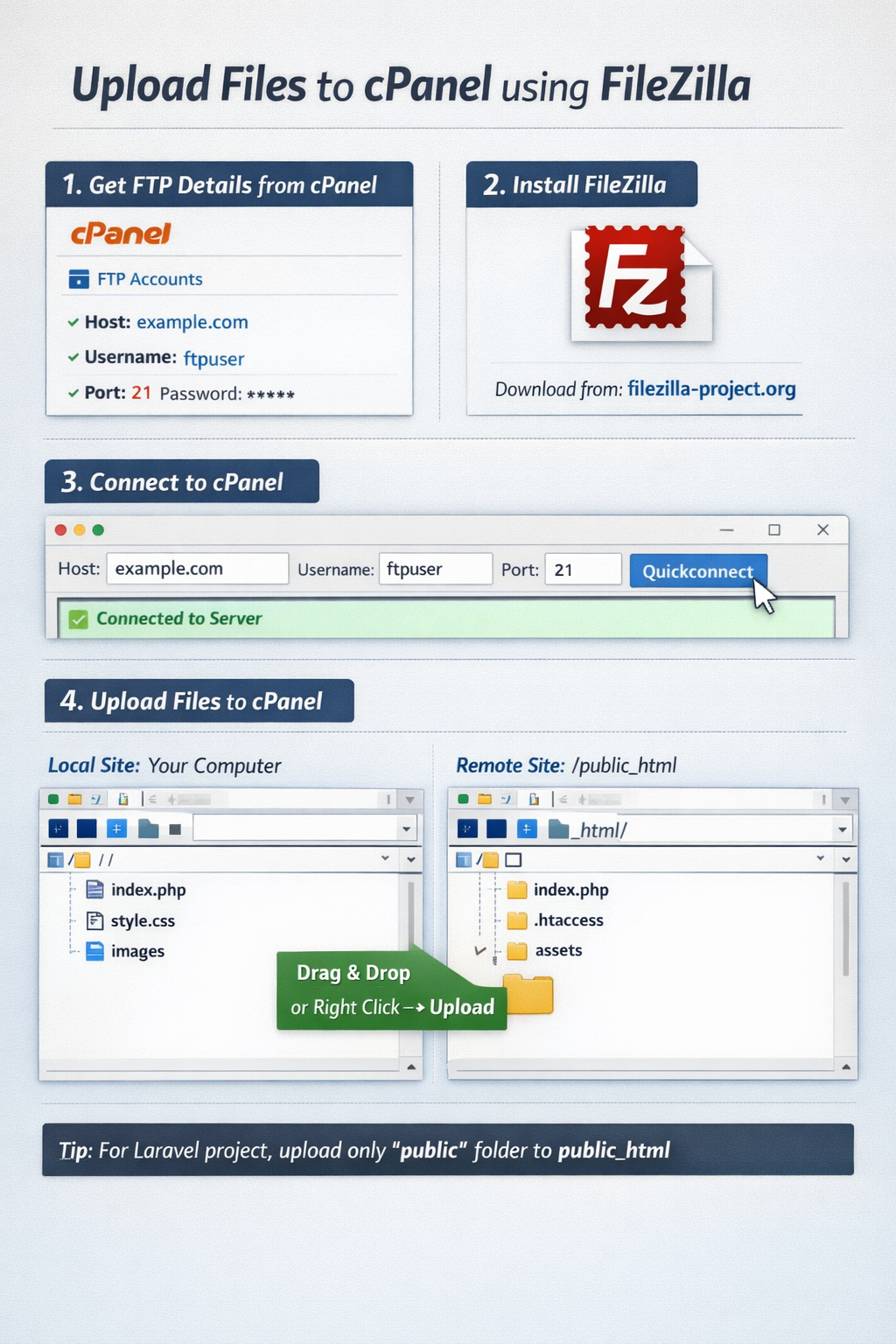
Step 1: Get FTP Details from cPanel
- Log in to cPanel
- Go to Files → FTP Accounts
- Note down:
- Host: usually your domain (e.g. example.com) or server IP
- Username
- Password
- Port: 21
Step 2: Install FileZilla
Download and install FileZilla Client
👉 https://filezilla-project.org/
Step 3: Connect FileZilla to cPanel
- Open FileZilla
- At the top, enter:
- Host: example.com
- Username: FTP username
- Password: FTP password
- Port: 21
- Click Quickconnect
✅ If successful, you’ll see files on the right side (server).
Step 4: Upload Files
- Left side → Your computer
- Right side → Server (cPanel)
Important directories:
- public_html/ → Main website files
- public_html/subfolder/ → Subdomain or project folder
📤 To upload:
- Drag & drop files from left → right
- Or right-click → Upload
Step 5: Upload Laravel / Project Files (If Needed)
If you are uploading a Laravel project:
public_html/
 ├── index.php
 ├── .htaccess
 └── assets/
🔹 Keep Laravel core files outside public_html (for security)
🔹 Only public folder content goes into public_html